Designs
With the Designs form (study > Volumetrics > Volumetric Study > Designs) you create one or multiple 'sampling designs'. A design consists of the sampling type, a specified number of realizations, a seed number that starts the sampling, a selection of uncertainty parameters and, after the design has been run, the sampled values.
Each uncertainty parameter that you select on the form will receive one sample per realization after which the computational model can be run with a single value for each parameter distribution. On the Designs form, you can select from various sampling techniques, listed under DoE (Design of Experiments) Sampling Type, which ultimately determine the total number of realizations as well as the parameter value per realization.
Creating a design
You can use the table at the left side of the form to add and delete designs to your study.
- Next to Designs, click the green plus icon
 to add a design to the table.
 - Change the default name of the design by entering a new name in the Name text field under Design, or leave the name as is.
- Select a sampling method. For detailed information, see the 'Selecting a sampling method' section below.
- Per design, select the uncertainty parameters that you want to include in the volumetric study run. If an uncertainty parameter is not valid it is disabled for selection. In this case, you can hover over the parameter to review a message explaining why that parameter is invalid. For each parameter that you select, a column (to contain the sampled values) will be added to the Realizations table on the QC Samples form. See the 'Incorporation Uncertainty Parameters' section further below for more about selecting uncertainty parameters on the Designs form.
- When you sample a design and make changes to the design afterward, the sampled values become out of sync with the design. Design changes made on the Designs form are automatically detected by the application, and you will be prompted with a warning to re-sample the design. However, in the following situations, you have to trigger the resampling yourself by checking the Force resampling of all designs (except Ad hoc) checkbox at the top of the form:
- When you updated a Probability Density Function (PDF) of a selected uncertainty parameter, including setting it to 'certain' if it was a parent.
- When you updated the dependency of a selected uncertainty parameter.
- When you updated a design or a design weight in combination with Latin Hypercube as sampling technique.
- When you have correlated parameters but checked the 'Ignore parameter correlations' checkbox on the form.
Selecting a sampling type
 Ad hoc
Use the Ad hoc sampling technique when you want to calculate volumetrics with user-defined parameter values per uncertainty parameter. Note that Ad hoc is the only sampling technique with which you can generate samples for a fully deterministic volumetric concept. After you have selected the uncertainty parameter(s), you can specify the user-defined parameter values on the QC samples form.
You typically use Latin hypercube when you want to do uncertainty analysis of the run results. Latin hypercube sampling is a type of stratified sampling, focused on efficient sampling of the parameter space. It divides the probability distribution of uncertainty parameters in equal probabilities, while making sure that samples are not clustered. You can optionally run this sampling technique without prior distributions, in which case a uniform distribution is assumed (to do this, use the 'Ignore specified distributions' checkbox on the form).
To add realizations with Latin Hypercube
- Under DoE Sampling Type, select Latin hypercube.
- Latin Hypercube initializer Enter a value for the seed (4 digits) or use the adjacent dice icon
 to randomly generate a 4 digit seed number. The generation of a Latin hypercube design needs an integer to initialize the internal random generator (random but repeatable). When all other parameters stay the same, a different seed will generate different results. Only when all other parameters stay the same and the seed number is identical, you can reproduce the results. Note that the Latin hypercube designs generated are not optimized in any way: not for orthogonality/aliasing/correlation, but also not for optimizing distance between design points in hyper-space. You can use sampling method Ad-hoc to enter externally optimized experimental designs.
 - No. of realizations Enter the total number of realizations you want to generate.
- Target seed level This option works on seed-based uncertainty parameters (i.e. facies model uncertainty with SIS, TGS or MPS, rock property model uncertainty with SGS, and depth and thickness uncertainty with SGS) and is not related in any way to the Latin hypercube initializer. The value you enter on the form is the maximum number of different seeds that the seed-based uncertainty parameter can receive ('level' means the maximum number of different values). This way you enforce the repetition of seeds, enabling you to quantify the impact of each seed on the observable. The value must be greater than 0, and less than or equal to one third of the number of realizations, as this ensures a sensible number of repetitions. The consecutive seed values generated will range from [RefCase ... RefCase + Level-1]. Although you specify the target, not all seed values within this range may be sampled unless the number of realizations is sufficiently large. For more information on target seed level, see 'Background to the target seed level' below.
- Ignore specified distributions If you check the box, the parameter's PDFs are not used when generating the samples. A uniform distribution is assumed within the specified uncertainty range.
- In the Select Parameters for this Design table on the form, select the uncertainty parameters that you want to incorporate when calculating your volumetrics.
- Click the Apply or OK button. The active uncertainty parameters are sampled according to their respective PDFs and any seed settings. The generated realizations are added to the Realizations table on the QC Samples form.
Background to the target seed level
Sampling of uncertainties should happen such that the response in the observable can be unambiguously correlated to the input assumptions. This requires that continuous parameter values sampled in a design are not mathematically correlated to other parameters: the correlation factor between two UNC columns in the design should be zero or as small as practically required. If the correlation between samples is absent the parameters are NOT 'aliased' and data analysis will be more accurate. Experimental designs like Tornado (and e.g. Plackett-Burman, Box-Benken) are fully un-aliased designs for main effects (linear impact), while a Latin Hypercube or Monte carlo design is only fully un-aliased if the number of realizations sampled is infinite. Hence Latin Hypercube or Monte Carlo sampling should best be sufficiently numerous (1000+) to avoid aliasing.
Stochastic processes in JewelSuite required a seed number to initiate the stochastic process (SGS, SIS, TGS). As such these are implemented as uncertainties of a categorical nature: the seed needs to be an integer and will have no correlation with the observable while the observable outcome can be significantly impacted by the seed value. When Latin Hypercube or Monte Carlo designs sample the various seed values for various models used in the concept, and the seed level is a random integer, it will be impossible to analyze the impact of each individual seed until the seed numbers are repeated sufficiently, and in sufficiently different combinations with other seed values, before external data analysis tools (like RandomForest) can analyze the variable importance of each seed. That is why JewelSuite offers the Target seed level option where the seeds are limited to a user-defined level (the number of different seed values will be limited to this level, and the seed values will be consecutively in the range [RefCase seed .. RefCase_Seed+Nr_Levels-1]).
Monte Carlo sampling is pure random on the prior input PDFs of the input parameters. When using Monte Carlo as a sampling technique, make sure you use a significantly high number of realizations (400+), to prevent unrepresentative sampling. One risk of using this technique is that two sampled independent parameters have a significant correlation between their randomly drawn samples. If this is the case, you will be warned in the next step, when the generated realizations are added to the Realizations table on the QC samples form.
To add realizations with Monte Carlo
- Under DoE Sampling Type, select Monte carlo.
- Monte Carlo initializer Enter a value for the seed (4 digits) or use the adjacent dice icon to randomly generate a 4 digit seed number. The generation of a Monte Carlo design needs an integer to initialize the internal random generator (random but repeatable). When all other parameters stay the same, a different seed will generate different results. Only when all other parameters stay the same and the seed number is identical, you can reproduce the results. Note that the Monte Carlo designs generated are not optimized in any way: not for orthogonality/aliasing/correlation, but also not for optimizing distance between design points in hyper-space. You can use sampling method Ad-hoc to enter externally optimized experimental designs.
- No. of realizations Enter the total number of realizations you want to generate. A default value of 200 is filled in already, but it is advised to generate at least 400 realizations. In case you run into warnings in the next step, QC Samples, significantly increase the number of realizations.
- Target seed level This option works on seed-based uncertainty parameters (i.e. facies model uncertainty with SIS, TGS or MPS, rock property model uncertainty with SGS, and depth and thickness uncertainty with SGS) and is not related in any way to the Monte Carlo initializer. The value you enter on the form is the maximum number of different seeds that the seed-based uncertainty parameter can receive ('level' means the maximum number of different values). This way you enforce the repetition of seeds, enabling you to quantify the impact of each seed on the observable. The value must be greater than 0, and less than or equal to one third of the number of realizations, as this ensures a sensible number of repetitions. The consecutive seed values generated will range from [RefCase ... RefCase + Level-1]. Although you specify the target, not all seed values within this range may be sampled unless the number of realizations is sufficiently large. For more information on target seed level, see 'Background to the target seed level' below.
- Ignore specified distributions If you check the box, the parameter's PDFs are not used when generating the samples. A uniform distribution is assumed within the specified uncertainty range.
- In the Select Parameters for this Design table on the form, select the uncertainty parameters that you want to incorporate when calculating your volumetrics.
- Click the Apply or OK button. The active uncertainty parameters are sampled according to their respective PDFs and any seed settings. The generated realizations are added to the Realizations table on the QC Samples form.
Background to the target seed level
Sampling of uncertainties should happen such that the response in the observable can be unambiguously correlated to the input assumptions. This requires that continuous parameter values sampled in a design are not mathematically correlated to other parameters: the correlation factor between two UNC columns in the design should be zero or as small as practically required. If the correlation between samples is absent the parameters are NOT 'aliased' and data analysis will be more accurate. Experimental designs like Tornado (and e.g. Plackett-Burman, Box-Benken) are fully un-aliased designs for main effects (linear impact), while a Latin Hypercube or Monte Carlo design is only fully un-aliased if the number of realizations sampled is infinite. Hence Latin Hypercube or Monte Carlo sampling should best be sufficiently numerous (1000+) to avoid aliasing.
Stochastic processes in JewelSuite require a seed number to initiate the stochastic process (SGS, SIS, TGS). As such these are implemented as uncertainties of a categorical nature: the seed needs to be an integer and will have no correlation with the observable while the observable outcome can be significantly impacted by the seed value. When Latin Hypercube or Monte Carlo designs sample the various seed values for various models used in the concept, and the seed level is a random integer, it will be impossible to analyze the impact of each individual seed until the seed numbers are repeated sufficiently, and in sufficiently different combinations with other seed values, before external data analysis tools (like RandomForest) can analyze the variable importance of each seed. That is why JewelSuite offers the Target seed level option where the seeds are limited to a user-defined level (the number of different seed values will be limited to this level, and the seed values will be consecutively in the range [RefCase seed .. RefCase_Seed+Nr_Levels-1]).
Plackett-Burman is an experimental design that you typically use when you want to do sensitivity analysis. With Plackett-Burman you can evaluate the sensitivity of the results (i.e. the reported volumes) to the parameter's uncertainties. In other words, you can evaluate the contribution of each uncertainty parameter to the total uncertainty and identify the most influential parameters. However, it does not account for the effect one uncertainty parameter has on another, and as such should only be used as a starting point. Parameters are systematically varied between their lower and upper bound, keeping all other parameters at their center value. Next the design is mirrored, and the center case is added. When the application generates realizations, it adheres to the published Plackett-Burman designs (https://en.wikipedia.org/wiki/Plackett%E2%80%93Burman_design) up to 48 uncertainty parameters. From 48 parameters and up, the Silvester-Hadamard algorithm is applied to get a fully orthogonal Plackett-Burman design, with 2N+1 realizations, where N=2^m as nearest equal-above the number of parameters. You can optionally truncate the parameter's distributions by applying a 'confidence level'.
To add realizations with Plackett-Burman
- Under DoE Sampling Type, select Plackett-Burman.
- Enter a value for the confidence level. With the confidence level (or more specifically 'confidence interval') you control the parameter's uncertainty ranges. See below for more explanation.
- Select the uncertainty parameters that you want to use when calculating your volumetrics.
- Click the Apply or OK button. The active uncertainty parameters are sampled according to their respective PDFs, and the confidence level that you entered. The generated realizations are added to the Realizations table on the QC Samples form.
How the 'Confidence level' works
The confidence level bounds the parameter's uncertainty ranges. Instead of running Plackett-Burman with the minimum and maximum values of the parameter's distributions, less extreme values are sampled when you enter a value less than 100%.
For example, applying a confidence level of 80% is equivalent to the P90 and P10 of the parameter's distribution. Note that when a distribution has been truncated ('Min truncation'/'Max truncation' on the Uncertainty Parameter dialog), the confidence interval is applied to the truncated distribution.
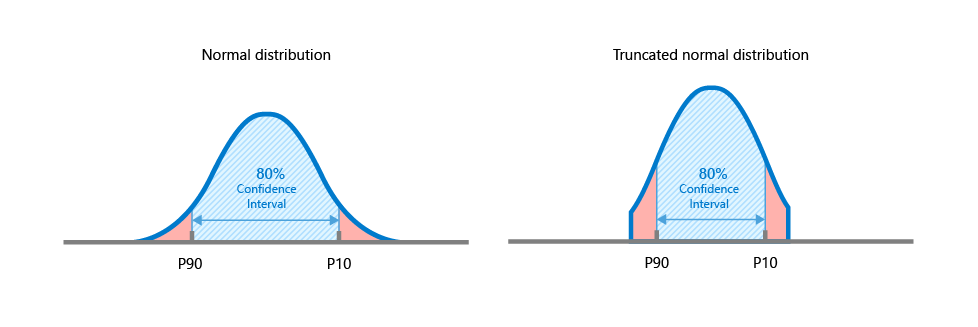
Example of confidence interval applied to a normal distribution (the same principle applies to all distribution types). Left image - A confidence interval of 80% applied to a normal distribution is equivalent to the P90 and P10 of the distribution. Right image - A confidence interval of 80% applied to a truncated normal distribution is equal to the P90 and P10 of the truncated distribution. click to enlarge
Tornado is an experimental design that you typically use when you want to do sensitivity analysis. With Tornado you can evaluate the sensitivity of the results (i.e. the reported volumes) to the parameter's uncertainties. In other words, you can evaluate the contribution of each uncertainty parameter to the total uncertainty. Parameters are varied one at a time to their minimum and maximum value, keeping all other parameters at their center value. As such, Tornado sampling generates (2n+1) realizations per concept, with n being the number of uncertainty parameters for that concept (except uncertainty parameters which are incorporated via a seed). Instead of using the extremes, you can optionally truncate the parameter's distributions by applying a 'confidence level'.
To add realizations with Tornado
- Under DoE Sampling Type, select Tornado.
- Enter a value for the confidence level. With the confidence level (or more specifically 'confidence interval') you control the parameter's uncertainty ranges. See below for more explanation.
- Select the uncertainty parameters that you want to use when calculating your volumetrics.
- Click the Apply or OK button. The active uncertainty parameters are sampled according to their respective PDFs, and the confidence level that you entered. The generated realizations are added to the Realizations table on the QC Samples form. The number of realizations generated is (2n+1) with n being the number of uncertainty parameters (excluding seed).
How the 'Confidence level' works
The confidence level bounds the parameter's uncertainty ranges. Instead of running Tornado with the minimum and maximum values of the parameter's distributions, less extreme values are sampled when you enter a value less than 100%.
For example, applying a confidence level of 80% is equivalent to the P90 and P10 of the parameter's distribution. Note that when a distribution has been truncated ('Min truncation'/'Max truncation' on the Uncertainty Parameter dialog), the confidence interval is applied to the truncated distribution.
Example of confidence interval applied to a normal distribution (the same principle applies to all distribution types). Left image - A confidence interval of 80% applied to a normal distribution is equivalent to the P90 and P10 of the distribution. Right image - A confidence interval of 80% applied to a truncated normal distribution is equal to the P90 and P10 of the truncated distribution. click to enlarge
Incorporating uncertainty parameters
The table on the right hand side of the Designs form, under 'Select Parameters for this Design', lists all the uncertainty parameters in your study, including correlated uncertainty parameters. Parent uncertainty parameters are listed in bold. Each of these parameters has been made uncertain with the Uncertainty Parameter dialog, or, in case of depth and thickness uncertainty, with the Depth and Thickness Uncertainty workflow. Using this table, you can make uncertainty parameters 'active' or 'inactive' per design by checking and unchecking their checkbox. 'Inactive' parameters will not be considered uncertain when you run the study and their Reference Value is used during the run. The Reference Value is the value on the domain model form, and is also displayed at the base of the Uncertainty Parameter dialog.
In- and excluding uncertainty parameters
- Review the list of uncertainty parameters in your study and decide which parameters you want to incorporate in your study run, and which parameters you want to (temporarily) make inactive (their reference values will be used).
- Check the checkbox of each parameter that you want to include as uncertainty parameter in your run. If there is a dependency between uncertainty parameters, selecting the parent uncertainty parameter automatically selects all the child uncertainty parameters as well. All parent uncertainty parameters are listed in bold. Make sure you uncheck the checkbox of each parameter that you do not want to include as an uncertainty parameter in your run. Instead, the parameter's Reference Value will be used.
- When uncertainty parameters are fully dependent, child uncertainty parameters are grayed out, and cannot be individually checked or unchecked.
- When uncertainty parameters are partially dependent, you can also select a child uncertainty parameter without selecting the parent uncertainty parameter. The child uncertainty parameter is then treated as if it is an independent uncertainty parameter.
- Click Apply to save the changes and keep the form open, or click OK to apply the changes, close the form and move to the next button of the workflow.
Sampling Settings - Changing an existing design, or modifying an uncertainty parameter definition (PDF)
- If you change a design that has already been sampled, resampling of the updated design needs to take place in order to continue the workflow (you are prompted with a warning that gives you the option to resample). If you already ran the study for that design, any existing run results for that design (as listed on the Results Summary form) will be deleted as well.
- If you modify the PDF of a selected uncertainty parameter which has already been sampled, you must resample the design. This will ensure the current PDF is reflected in the samples. To do this, check the Force resampling of all designs (except Ad hoc) checkbox at the base of the form before you click Apply/OK. Note that:
- Resampling only applies to sampling methods Tornado and Latin Hypercube (existing samples generated with Ad-hoc remain unchanged).
- Uncertainty parameters that have a seed will remain unchanged (you can resample existing seeds by changing the seed on the Designs form).
- If you have dependent uncertainty parameters in one of your designs (both fully or partially dependent), the option Ignore parameter correlations for all designs is selectable. If you check this option and run a study, all the uncertainty parameters are treated as if they were independent. The parent-child relationship of the dependent uncertainty parameters still exists in the domain models of the uncertainty parameters, but when you go trough the remaining steps in the Volumetrics Study workflow, the correlation settings are ignored and only the distribution settings (PDF) of the (child) uncertainty parameters are used. If you check this option, the Force resampling of all designs (except Ad hoc) is checked automatically as well. When you reopen the form, the 'Ignore' option is still selected, its check status is saved to the study.